
Your CBSE day, end-to-end.
Sign up, attend live classes, study NCERT chapters with an AI teacher, upload anything to Study Lab, take CBSE-style tests, group-study with friends, and revisit recordings whenever you need them. Here's how every piece fits together.
Your day-one workflow
Four steps from "first time on the site" to actually learning.
Pick your path on the landing page
Open learnskill.io and tap Login / Signup on the Student Corner card. (Already a Pro Teacher? Use the For Teachers card instead.) Sign up in one tap with Google or email — then head to the pricing page to grab a 3-day free trial when you're ready (no card upfront).
Sign in or create your account
Use Google in one tap, or sign up with email + password. Same account on web, mobile web and our PWA — your progress, highlights and chats follow you everywhere.
Walk through the 9-slide showcase + your name
Two minutes total. See what's included (NCERT lessons, Study Lab, audio, exam prep, Class Room, Group Study, AI teacher), tell us your name and you're done. We default you to CBSE Class 9 with 5 core subjects ready — change class or swap subjects any time from Profile → Edit Subjects.
Dashboard tour & start learning
Check the Messages ticker at the top (announcements + AI tips, personalised to your name). Tap any subject tile to open a chapter, or jump straight to Class Room / Group Study / Study Lab from the left-column tiles.
Main features — how to use them
One card per feature. Each is a quick step-by-step you can follow on your own dashboard.
Lessons & Chapters
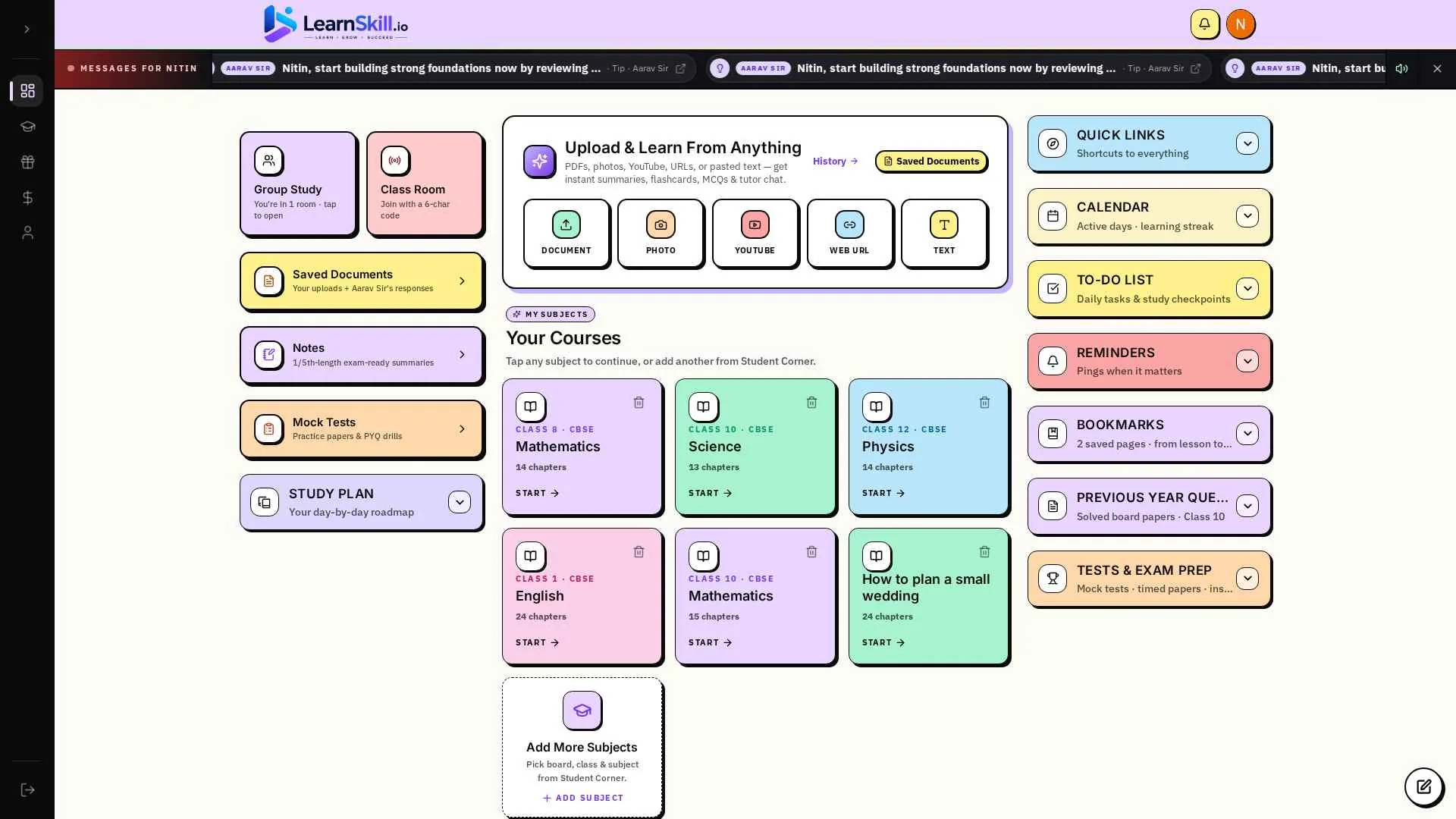
- Tap any subject tile on the dashboard — chapters appear in your NCERT order.
- Inside a chapter, scroll page-by-page. Each page is a short, focused lesson with diagrams and audio.
- Select any sentence to highlight it — pick a colour or tap the note icon to add a written remark.
- Use Prev / Next at the bottom to navigate; your last position is remembered.
Class Room — live classes & recordings
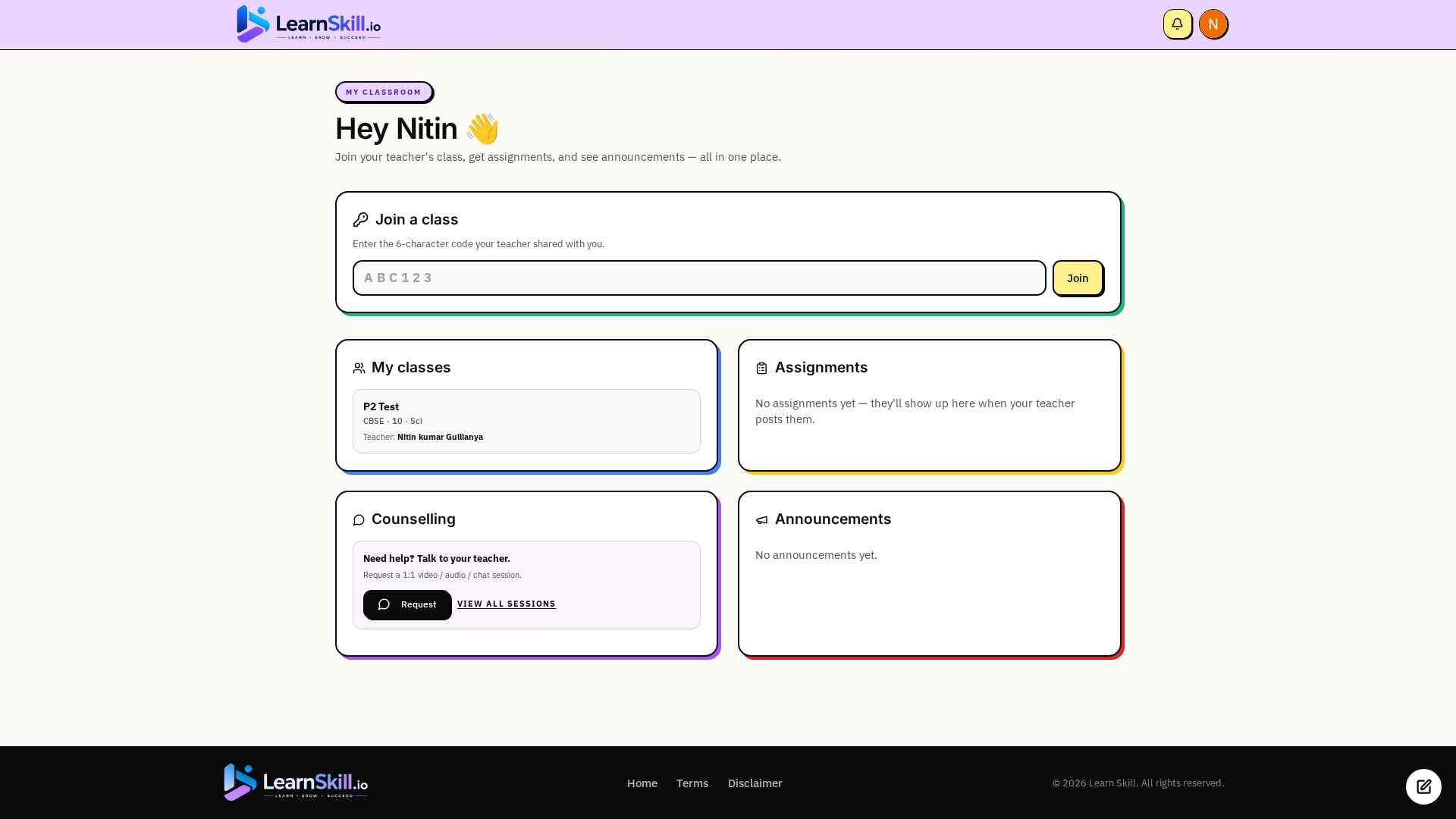
- Tap CLASS ROOM on the dashboard to see classes scheduled by your teacher.
- When a class is live, a red LIVE badge + Join button appears automatically — no refresh needed.
- Inside the room: teacher's video full-screen, your self-view PiP in the corner, raise-hand and chat controls at the bottom, plus a new GALLERY VIEW button to see every classmate at once.
- Missed a class? The Recordings card on the right shows every past session as a colourful card — tap anywhere to watch.
Study Lab — upload anything
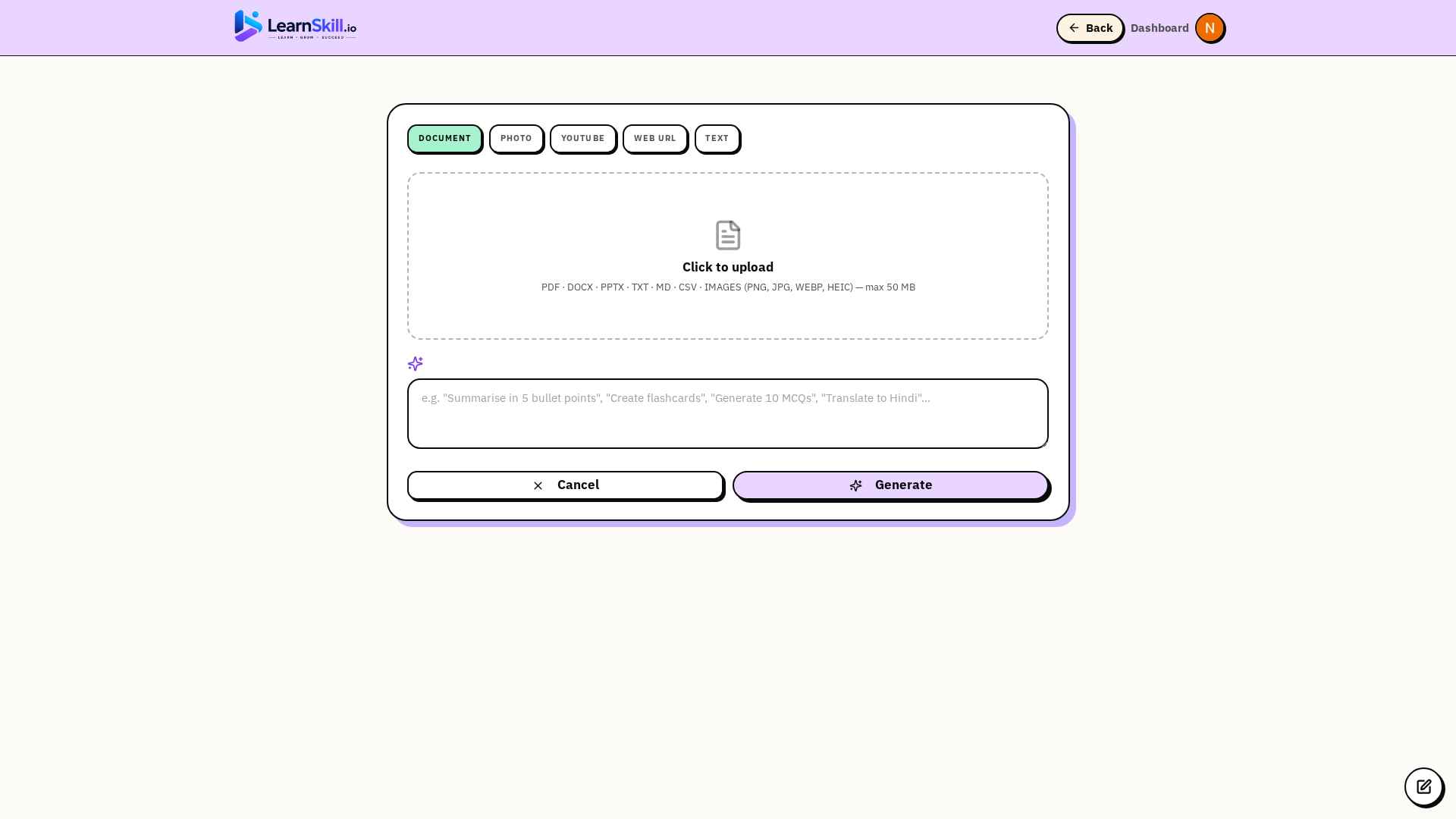
- Open STUDY LAB from the dashboard right rail.
- Drop a PDF, paste a YouTube link or snap a photo of your homework.
- Hit Send — you get a clean explanation, key concepts and follow-up questions in seconds.
- Tap Save to Documents to keep an output for later; saved sessions live in the Saved Documents tile.
Your 24×7 AI Teacher (Aarav Sir)
- Open the chat sidebar on the left of any lesson page.
- Type your doubt in plain English or Hindi — examples: 'explain this simpler', 'real-world example'.
- Tap the speaker icon on any reply to hear it in Aarav Sir's voice.
- Each subject has its own teacher tab so context stays clean — the AI always knows the page you're on.
Highlights & Notes
- Select any text inside a lesson — a small toolbar pops up.
- Pick a colour to save a highlight, or tap the pencil to add a written remark.
- All highlights + notes auto-save and show up in My Notes (lesson sidebar) and the Quick Revision modal.
- Tap a saved item again and choose Remove to delete.
Quick Revision
- On the dashboard, tap the QUICK REVISION tile — a modal opens with a tab per subject.
- Each chapter shows your saved highlights, your written notes and the lesson's auto-generated key points.
- Tap any chapter card to expand its items; tap Open chapter to jump straight back to the lesson.
- Best used the night before a test — ~5 min revisits everything you marked this term.
Tests & Exam Prep
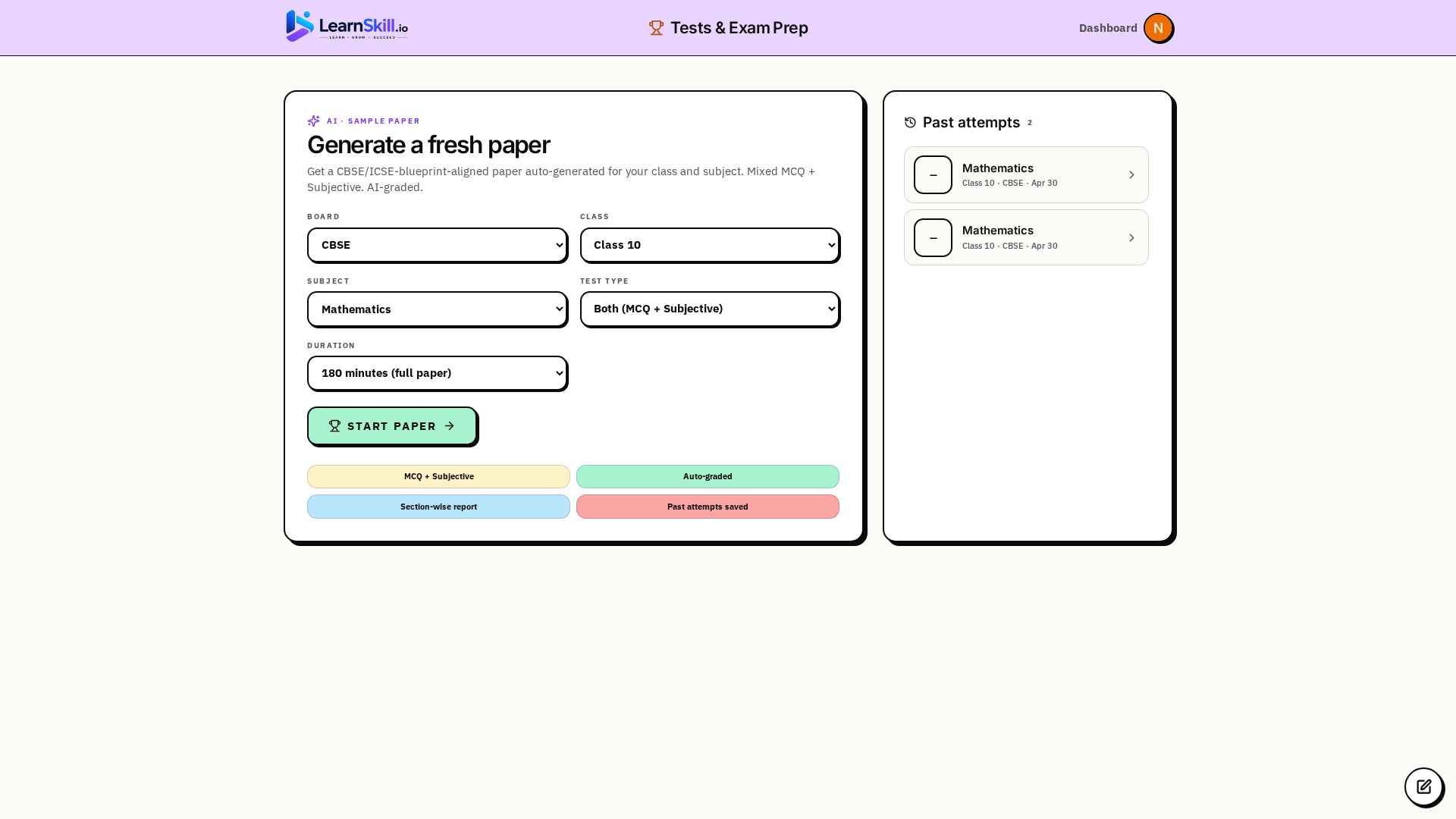
- Open TESTS & EXAM PREP from the dashboard.
- Pick a subject + chapter — we auto-build a CBSE-blueprint paper (MCQs + short answers) tuned to your class.
- Submit anytime. You get sectional + topic-wise accuracy and a full answer key with reasoning.
- Re-attempt any test — each run picks a different spread so you keep learning.
Worksheets & Quizzes
- End of each lesson includes a quick quiz — 5–10 multiple-choice questions.
- For deeper practice, open the WORKSHEET tab inside the lesson — short-answer + fill-in-the-blank items.
- Submit anytime. Wrong answers come with the correct answer + why it's correct.
- Scores feed into your Quick Revision and dashboard streak counters.
Auto-Built Study Plan
- Open the STUDY PLAN section in the dashboard right rail.
- Tell us your exam (or just a subject), how many days you have and hours per day you can study.
- AI builds a week-by-week plan covering chapters in priority order. Save it.
- Click any saved plan to view; tap the trash icon to delete a plan and create a new one.
To-Do, Reminders, Bookmarks
- TO-DO: quick tasks — add, tick off, delete.
- REMINDERS: scheduled prompts — set a date/time + recurrence, get a notification when due.
- BOOKMARKS: any lesson page where you tap the bookmark icon lands here for later.
- All three live in the dashboard right rail and sync across devices.
Group Study Rooms
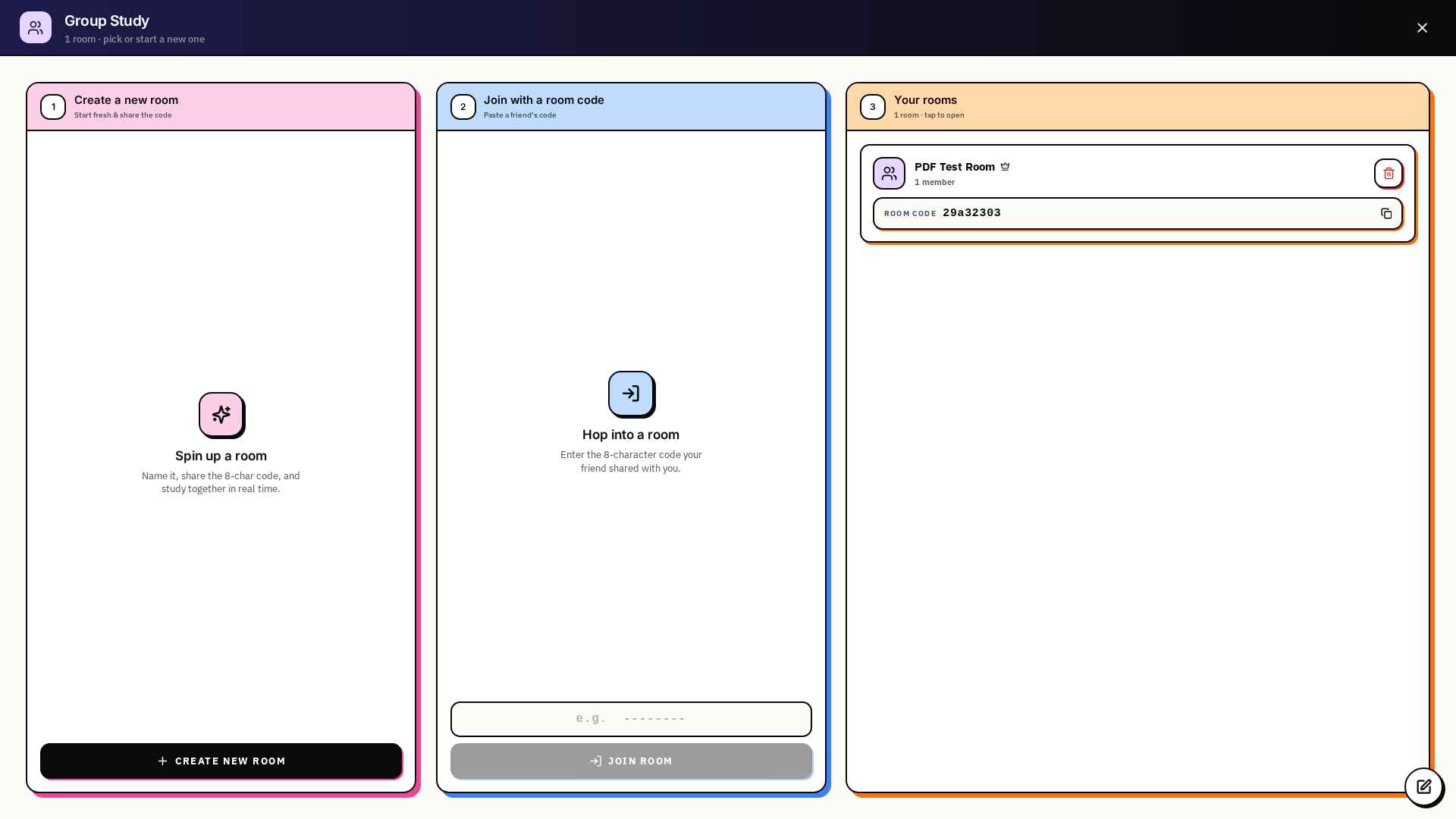
- Tap GROUP STUDY on the dashboard to create a room or join with a 6-character code.
- Inside: shared whiteboard, group chat, Pomodoro timer, and a Common PDF Store for the whole room.
- Up to 20 friends per room on Pro Max; 3 friends per room on Free / Pro.
- Powered by Daily.co — peer-to-peer video so chats stay private to your room.
Messages ticker (top of dashboard)
- A sticky red strip sits right under the header — labelled 'MESSAGES FOR <your name>'.
- It surfaces teacher announcements, upcoming class reminders, friend-shared PDFs, AI study tips and assignment nudges.
- Tap an item to jump straight to the source; × hides the strip; the speaker icon toggles the chime.
Saved Documents
- Inside Study Lab, hit SAVE TO DOCUMENTS on any explanation, summary or worksheet output.
- All saved items live behind the SAVED DOCUMENTS tile on the dashboard.
- Open any saved doc to re-read, hear it narrated, or share it with a Group Study friend.
Audio Lessons
- Tap the headphones icon in the top-right of any lesson page.
- Aarav Sir reads the page aloud in a natural Indian accent — useful while commuting or resting your eyes.
- Audio is generated on demand and cached, so replays are instant.
- Study Lab outputs can be narrated the same way.
Blank Paper
- Tap the pencil icon in any lesson's tool rail — a blank paper opens beside the lesson.
- Write rough working or notes alongside the chapter.
- Auto-saves per lesson; tap Erase to clear and start fresh.
Streaks & Daily Greetings
- Open the app every day to keep your streak alive — visible at the top of the dashboard.
- Your AI teacher greets you with a fresh, personalised note every morning (subject-aware).
- Streaks count even from short sessions — 5 minutes of revision still counts.
Add or Swap Subjects
- On the dashboard, tap the dashed + New Subject tile (or use the mobile slot row).
- Pick ANY class and ANY subject — we're CBSE-first across Class 6–12.
- Tap Generate — the AI builds the chapter list + first lesson in seconds.
- Manage subjects later from Profile → Edit Subjects.
Frequently asked
What does "Login / Signup" do on the landing page?
Tapping Login / Signup on the Student Corner card takes you straight to signup (or login if you already have an account). Once you're in, head to the pricing page to start the 3-day free trial (no card required) and unlock the full app — or pick Pro/Pro Max for premium features like more Group Study seats and unlimited Class Room access. Logged-in users see "Go to Dashboard" on the same button.
How do I join my teacher's live class?
Open the Class Room tile on the dashboard. Scheduled classes show up automatically — the moment a class is within 5 minutes of its start time, a red LIVE badge and a Join button appear. Click Join and you're inside the broadcast in seconds.
Can I watch a class I missed?
Yes — every recorded class lives behind the orange Recordings card inside Class Room. Tap any card to play the recording on demand.
Can I change my class after onboarding?
Yes — Profile → Edit Subjects lets you swap class once for free and add or remove any subject any time. Your saved highlights and notes follow you.
Will my notes sync between phone and laptop?
Yes. Highlights, notes, bookmarks, study plans, reminders, saved documents and quiz history are all server-stored against your account.
How is the AI teacher different from ChatGPT?
Aarav Sir knows exactly which class, chapter and page you're on, answers in your syllabus's language, and gives examples that match CBSE framing.
Which boards and classes are supported?
Strictly CBSE, Class 6–12. All lessons are NCERT-grounded and we're continuously expanding the library (70+ chapters live today).
Is my data private?
Yes — your highlights, notes and chats are visible only to you. We never share or sell student data; see Terms and Disclaimer for the full policy.